Show, Don’t Tell: Images in Your Notion Client Portal
So much of client work is visual. A design mockup, a rendered deliverable, a photo from the site visit, a screenshot of the thing you just shipped. A row that says “In Review” tells a client that something changed; the actual image shows them the work - and that difference is often what turns a status page into something clients genuinely look forward to opening.
Portalize reads the images you already keep in Notion and displays them inline in each client’s portal - no re-uploading, no separate gallery to maintain, and no giving clients access to your workspace.
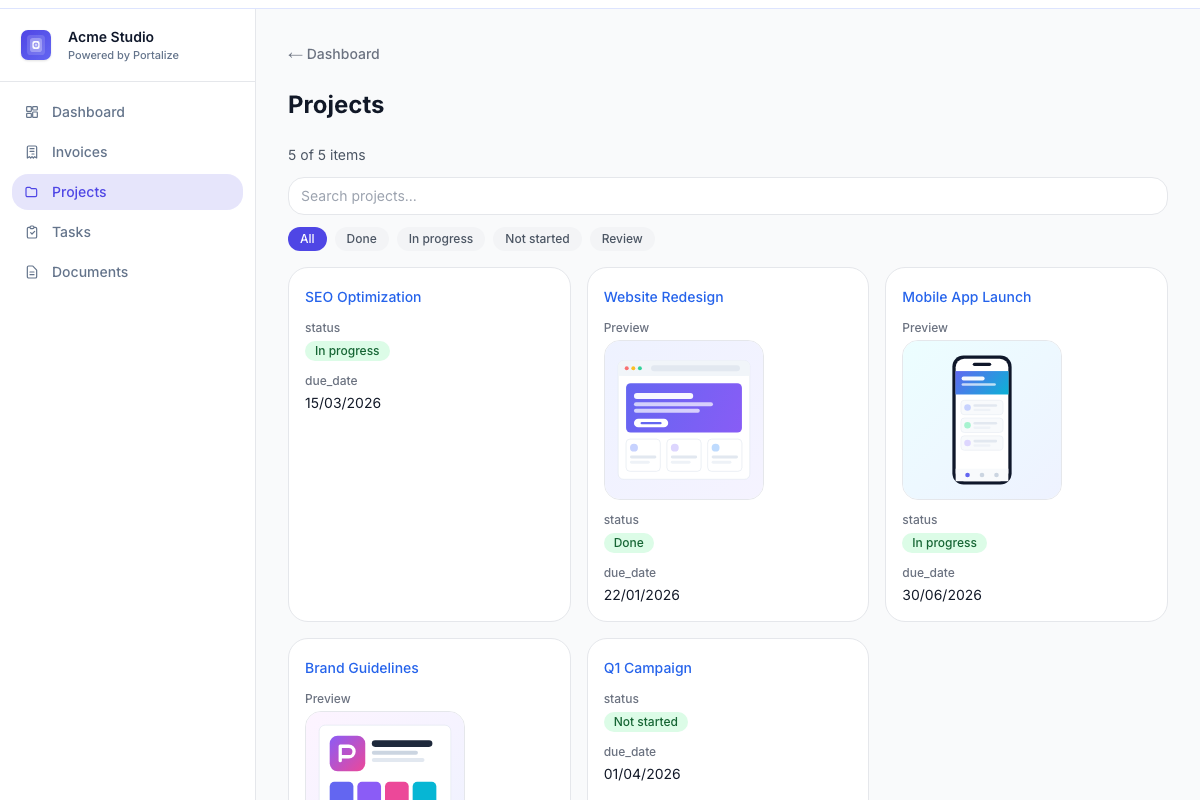
Images come straight from your Notion database
If a database has a Files & media property - the column where you attach mockups, PDFs, or photos - Portalize picks it up automatically. Add that property to a view’s visible fields and any images in it render as thumbnails right inside the portal, next to the rest of the record’s details.
Because the images live in Notion, they stay in sync. Swap a mockup in Notion and the client’s portal reflects it on the next refresh. Your Notion workspace remains the single source of truth.
Control how big images appear
Different views want different emphasis. A dense task list might only need small thumbnails, while a deliverables view should show the work off. Each view has an image size setting:
- Small - compact thumbnails that sit neatly in a busy list or table.
- Medium - a balanced preview for card and list layouts.
- Large - big, prominent images when the visuals are the point.
When a client opens an individual record’s detail page, images are always shown large - so the full-size preview is one tap away no matter how you’ve sized the list.
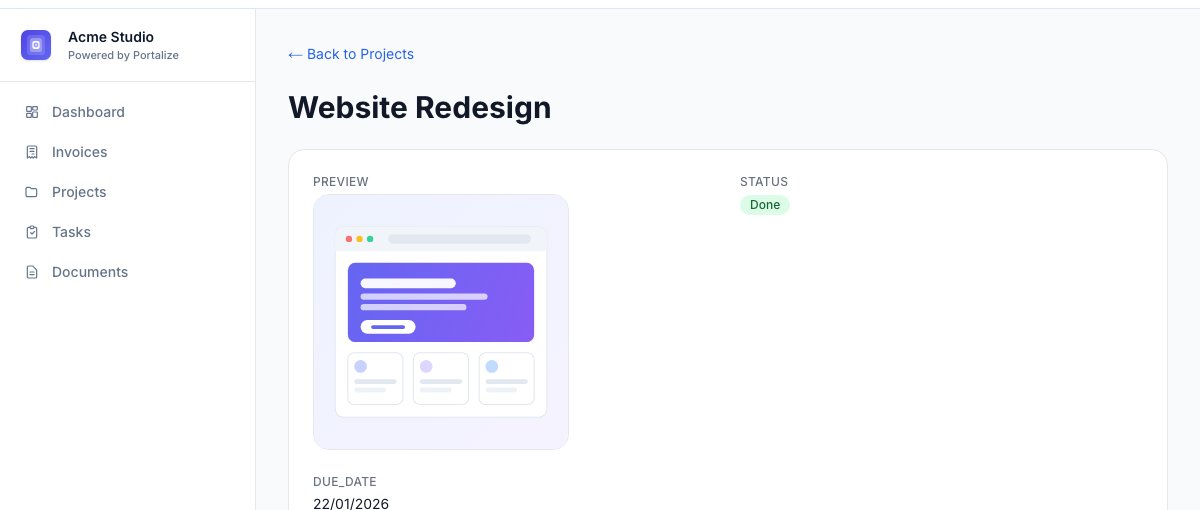
Works across list, table, and card views
However you lay out a view - a simple list, a spreadsheet-style table, or a grid of cards - images render the same way, so you can present the same database in whatever format fits the client. Clicking any thumbnail opens the full-resolution file in a new tab, and non-image attachments in the same column appear as clean download links.
Give clients a portal that shows the work, not just a status - pulled straight from your Notion, branded as yours. Free forever — no credit card required.
Start freeHow to turn it on
In the Portalize view editor, open the Fields tab and make your Files & media property visible. An image size control appears whenever the connected database has an image or file column - pick Small, Medium, or Large, save the view, and your clients will see the images immediately. Start with one deliverables or assets view and expand from there.
It’s a small setting with an outsized effect: the moment a client can see the actual work in their portal, the portal stops being a report and starts being where the work happens.